
If you use SpicyChat in Android Chrome, try the browser’s page zoom when the chat is small. The mobile guide distinguishes the browser route from an app. Chrome help describes default zoom and zoom for a particular site.
Check the paragraph and the input together
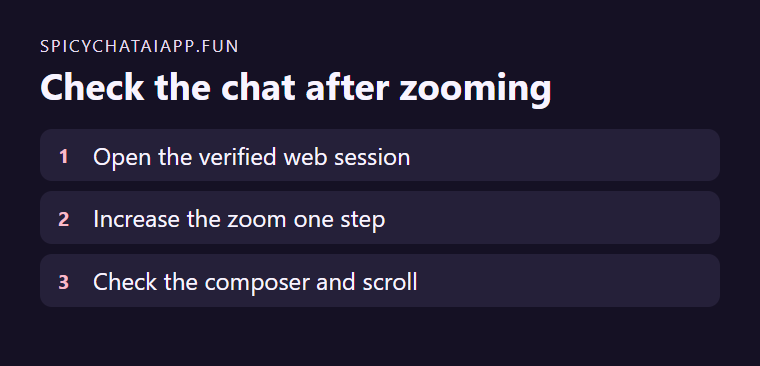
Open a familiar fictional chat in the browser. Increase zoom by one step and read a paragraph. Open the composer, scroll to the latest turn, and check you can still reach Send. A comfortable size works for reading and writing.
Keep the setting tied to the route you use
Choose site zoom where available if you prefer normal size elsewhere. Return to the previous value if text wraps so far that reaching controls becomes difficult. For the separate app, check its own display or accessibility options.